
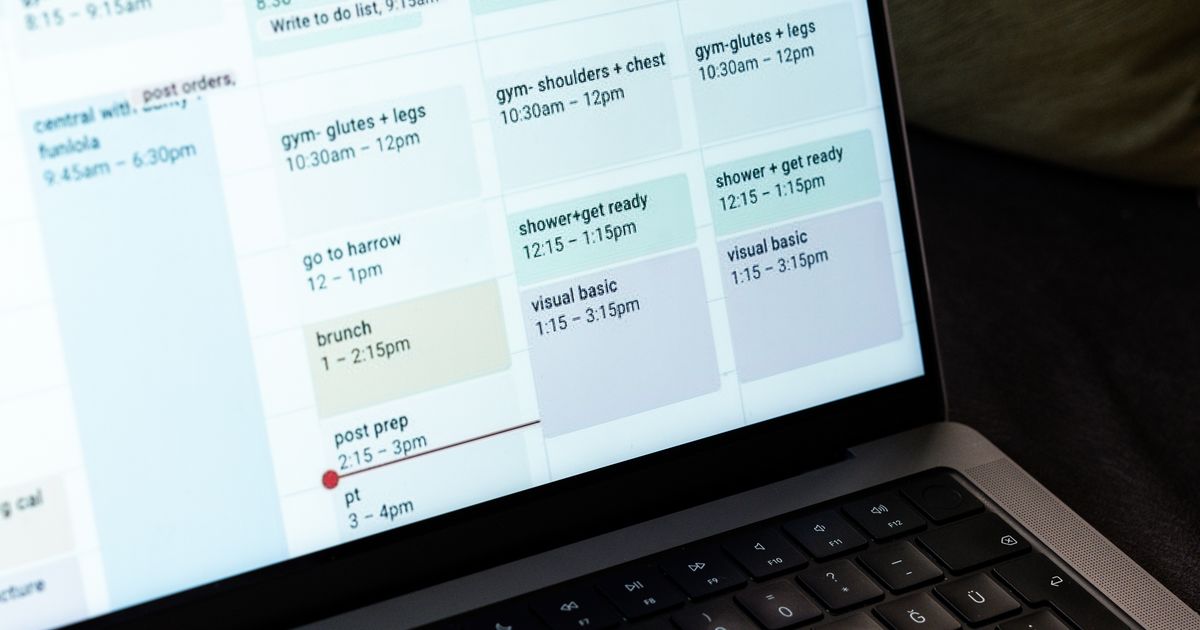
You put a two-hour block on Thursday afternoon. Someone books a call right in the middle of it anyway. Sound familiar?
The block was there. It just wasn't blocking. In Google Calendar, an event and an unavailable time slot aren't the same thing. One setting decides whether an event tells the world you're busy, and Google hides it behind a dropdown most people never open. This guide shows you every way to block time in Google Calendar, which ones your account actually gets, and the all-day event trap that quietly leaves your booking link open.
Key Takeaways
- An event only blocks your availability when it's set to Busy. Google's help center says times "during events on your calendar that are set to 'Busy' don't show on the booking page" (Google Calendar Help, "Check your availability across calendars").
- All-day events usually start as Free, so your "Vacation" banner may not stop a single booking.
- Focus time, out of office and working hours only work on work or school accounts.
- Private hides the details. It doesn't free the time. Others still see "Busy."
Just getting started with bookings? Read our guide to appointment scheduling with Google Calendar first.
What does blocking time in Google Calendar actually do?
Google Calendar has one switch for this: every event is set to either Busy or Free. Google's help center puts the rule simply: "Appointment times during events on your calendar that are set to 'Busy' don't show on the booking page" (Google Calendar Help, "Check your availability across calendars"). That single setting is what colleagues, booking pages and scheduling tools read.
Every timed event you create starts as Busy. That's why a normal block usually works. The problems start when an event is set to Free on purpose, by accident, or by default.
Here's what "blocked" means in practice. People who see your calendar with free/busy access see a grey block. Google's own booking page skips that slot. Any outside scheduling tool that checks your Google Calendar skips it too. A Free event does none of these things. It sits on your grid, visible to you, and invisible to everyone trying to book you.
The setting people confuse most is visibility, not availability. Marking an event Private feels like hiding it, but it doesn't release the time. Google says that with a private event, "others looking at your calendar will see a block labeled 'Busy'" (Google Calendar Help, "Change the privacy settings for an event"). Busy/Free controls whether you're bookable. Visibility controls what people learn about why. You need both, and they're two separate dropdowns.
How do you block time with a Busy event?
You create a normal event and make sure it's set to Busy. It takes under a minute, and it's worth it. Asana found that people who aren't managers lose 3.7 hours every week to meetings that didn't need to happen (Asana, "Unproductive meetings"). That's almost half a workday. A Busy block is the simplest way to win some of it back.

Step 1: Open Google Calendar on a computer. The web version shows every option. Google's mobile help pages don't document the Busy/Free setting, so set it from a browser.
Step 2: Click the time slot and choose More options. A quick-create box shows only the title. The full editor shows everything.
Step 3: Give the block a clear title. "Client work," "Deep work" or "Unavailable" all work. If you share details with colleagues, they'll see this title.
Step 4: Check the Busy/Free dropdown. It sits in the event details, next to the visibility option. Make sure it says Busy.
Step 5: Set the visibility. Pick Private if the reason is nobody else's business. The time still shows as Busy.
Step 6: Make it repeat. Next to Does not repeat, choose a pattern such as every weekday. Google caps repeating events at 730 occurrences (Google Calendar Help, "Create a recurring event"). That's about three years of weekday blocks before you have to renew it.
Step 7: Save. Then open the event again and check both settings stuck.
For a full weekly blocking routine, see our guide on how to time block your calendar.
Why all-day events don't block your availability
All-day events usually start as Free. Google's help center doesn't spell this out, but scheduling vendors document it plainly: "By default, all-day events are marked as 'free,'" so your calendar "still sees this time as available to be scheduled over" (Reclaim.ai, "All-day events" glossary).
This is the trap behind most "I was on holiday and still got booked" stories. You add a banner across the top of Monday that says "Conference" or "Vacation." It looks blocked. It isn't. Booking pages read the Busy/Free setting, not the banner.
Google confirms the other side of the rule. On its own booking pages, "no appointment times show up on days where you have an all-day event set to 'Busy'" (Google Calendar Help, "Check your availability across calendars"). Everything hinges on those last two words.
The fix takes ten seconds:
- Open the all-day event and click the pencil icon to edit it.
- Find the Busy/Free dropdown and switch it to Busy.
- Save, and repeat for any other all-day event that should block you.
Want to check your own calendar? Open any all-day event you've already made and look at that dropdown. If it says Free, that day has been bookable the whole time.
For longer absences, a dedicated out-of-office setting is safer than an all-day event. Our guide on setting out of office explains how that works in a booking tool.
Focus time, out of office and working hours
These are Google's three built-in tools for protecting time. Two of them, focus time and out of office, go further than a Busy event because they decline invites for you. Working hours only tell people when you work. The need is real. Atlassian found that 78% of knowledge workers say they're "expected to attend so many meetings, it's hard to get their work done" (Atlassian, "Workplace Woes: Meetings").

Focus time
Focus time is a Busy block that also declines meetings. Open Calendar on a computer, click a time in Day or Week view, and choose Focus time at the top of the event. By default it declines new and existing meetings. You can switch it to Only new meeting invitations instead (Google Calendar Help, "Use focus time in Google Calendar").
There's a catch. Focus time is only on Google Workspace Business Standard and Plus, Enterprise Standard and Plus, Education and Nonprofits. Personal Gmail accounts and Business Starter don't get it.
Out of office
Click the first date at the top of the grid, choose Out of office, and pick your dates. Google says "your calendar will automatically decline all meetings during that time," and you can write the decline message yourself (Google Calendar Help, "Set your working hours & location"). It's the safest way to block a holiday, because it's Busy by design.
Working hours
Go to Settings → General → Working hours, turn on Enable working hours, and set your days and times. You can add more than one period per day, so a split schedule works. Anyone who shares your calendar with free/busy access can see those hours. Like out of office, it's only for accounts "through your work or school organization."
Working hours don't create Busy time, though. A booking tool that reads your free/busy data, like the one we built, won't see them. Set the same hours inside your booking tool too.
Which blocking features does your Google account get?
It depends on the account, and the gap is wide. Google's focus time page lists only Business Standard and higher Workspace plans, and working hours are limited to work or school accounts (Google Calendar Help). A personal Gmail user has fewer tools than most guides suggest.
We pulled this together from Google's own help pages, because no single page lists it:
| Way to block time | Personal Gmail | Workspace (work/school) | Declines invites? |
|---|---|---|---|
| Busy event (one-off or repeating) | Yes | Yes | No |
| All-day event set to Busy | Yes | Yes | No |
| Focus time | No | Business Standard and up | Yes, by default |
| Out of office | No | Yes | Yes |
| Working hours | No | Yes | No |
| Booking page checks secondary calendars | Eligible Google One plan | Eligible plans only | n/a |
For freelancers and solo consultants on a free account, the plain Busy event does almost all the work. Learn it well, and fix your all-day events.
How do blocked times stop people booking over you?
Booking pages read your Busy time and hide those slots. Google's rule is direct: "If you RSVP 'Yes' or 'Maybe' to an event or have any busy event in a calendar that is reviewed for conflicts, that block of time doesn't appear as open on your booking page" (Google Calendar Help, "Check your availability across calendars").
Notice the phrase a calendar that is reviewed for conflicts. On Google's appointment schedules, you turn this on with Check calendars for availability (Google Calendar Help, "Create a booking page"). With it on, Busy events hide the slots they cover. Secondary calendars are another matter: "To check availability from secondary calendars, you need to have an eligible Google Workspace or Google One plan." So a Busy block on your "Personal" calendar may not protect a free booking page.
Double-booking is a common complaint. In a survey of 1,733 working people, Zoho found that 44% cited back-and-forth scheduling as a major challenge, and 36% named double bookings as the next-largest one (Zoho Bookings, "Appointment scheduling survey").
When we built the Google Calendar conflict check for our own booking tool, we read availability from Google's free/busy data. That's the same data Google's booking page uses. It gives a clear rule: a Busy event on a checked calendar hides the slot, and a Free event doesn't exist as far as bookings go. If a booking tool offers a time you thought you'd blocked, check two things first. Is the event set to Busy? And is its calendar selected for conflict checks?
Running more than one calendar? Our guide to syncing multiple calendars to prevent double bookings covers the setup. Add buffer time between meetings so back-to-back calls don't eat your blocks either.
Do Google's new task blocks count as busy?
Possibly not, so test before you trust them. In November 2025, Google let users "block off time on their calendar to work on a specific task," for both Workspace and personal accounts (Google Workspace Updates, "Block off time to work on a task in Calendar"). The announcement doesn't say whether those blocks show as Busy.
Google's privacy help adds a hint. It says that "if you set the task with a start and end time to Busy, your task becomes visible to others" (Google Calendar Help, "Change the privacy settings for an event"). That suggests a task's time doesn't block you until you set it to Busy yourself.
The safe move is quick. Create a task block, open your booking page in a private window, and see whether that slot is still offered. If it is, use a normal Busy event for that work instead.
Want blocked time to stay blocked? Novacal checks every Google Calendar you connect for Busy events before it offers a slot. Add out-of-office dates for holidays and custom hours for each event type, all on one booking link. Create a free account, connect your calendars and set your availability before you pay.
Frequently Asked Questions
How do I block time in Google Calendar so others can't book it?
Create an event over that time and set it to Busy, not Free. Google says the time of a busy event "doesn't appear as open on your booking page" (Google Calendar Help). Make sure its calendar is the one your booking page checks for conflicts.
Why does my all-day event still show me as available?
All-day events usually default to Free, so booking pages ignore them. Reclaim.ai notes that by default they're "marked as 'free'" (Reclaim.ai). Open the event, switch the dropdown to Busy, and save. Google then hides that whole day on its booking page.
Does a private event still block my availability?
Yes. Private only hides the details. Google says others "will see a block labeled 'Busy'" when an event is private (Google Calendar Help). To make the time bookable again, you'd have to set the event to Free, which is a separate setting.
Can I use focus time on a free Gmail account?
No. Google lists focus time only for Workspace Business Standard and Plus, Enterprise Standard and Plus, Education and Nonprofits (Google Calendar Help). On a personal account, a repeating Busy event does the same blocking job. It just won't decline invites for you.
How do I block the same time every week?
Make one Busy event and set it to repeat. Next to Does not repeat, pick a weekly or weekday pattern and an end date. Google allows up to 730 occurrences per series (Google Calendar Help), so you'll need to renew it after a few years.
The bottom line
Blocking time in Google Calendar comes down to one dropdown. Busy blocks you. Free doesn't. Check it on every block you create, and check it twice on all-day events, because those often start as Free.
If you're on a Workspace plan, use focus time and out of office as well. They're Busy by design and they decline invites for you. On a personal account, a repeating Busy event is your best tool. And if a booking page still offers a time you blocked, check the Busy setting first and the conflict-check calendar second.
Next, build these blocks into a weekly routine with our time blocking guide, or learn how to set custom availability for each type of meeting you offer.
Sources
- Google Calendar Help, "Change the privacy settings for an event," retrieved 2026-10-07, https://support.google.com/calendar/answer/34580
- Google Calendar Help, "Create a recurring event," retrieved 2026-10-07, https://support.google.com/calendar/answer/37115
- Google Calendar Help, "Check your availability across calendars," retrieved 2026-10-07, https://support.google.com/calendar/answer/16287054
- Google Calendar Help, "Use focus time in Google Calendar," retrieved 2026-10-07, https://support.google.com/calendar/answer/11190973
- Google Calendar Help, "Set your working hours & location," retrieved 2026-10-07, https://support.google.com/calendar/answer/7638168
- Google Calendar Help, "Create a booking page," retrieved 2026-10-07, https://support.google.com/calendar/answer/10729749
- Google Workspace Updates, "Block off time to work on a task in Calendar," 17 November 2025, retrieved 2026-10-07, https://workspaceupdates.googleblog.com/2025/11/block-time-for-tasks-google-calendar.html
- Reclaim.ai, "All-day events" (glossary), retrieved 2026-10-07, https://reclaim.ai/glossary/all-day-events
- Asana, "Unproductive meetings," 8 April 2025, retrieved 2026-10-07, https://asana.com/inside-asana/unproductive-meetings
- Atlassian, "Workplace Woes: Meetings," March 2024, retrieved 2026-10-07, https://www.atlassian.com/blog/workplace-woes-meetings
- Zoho Bookings, "Appointment scheduling survey 2026," retrieved 2026-10-07, https://www.zoho.com/bookings/reports/appointment-scheduling-survey.html