
If you run your business from Google Calendar, you may wonder whether you actually need a separate scheduling tool. Google Calendar has its own built-in appointment scheduling feature, and for simple use cases, it can work well.
But once your booking workflow becomes more business-critical — involving team scheduling, branded booking pages, routing forms, or more flexible availability rules — the native setup can start to feel limited.
This guide walks through how appointment scheduling with Google Calendar works, where it is useful, where it falls short, which other scheduling tools integrate with Google Calendar, and how connecting a tool like Novacal can give you a more complete scheduling experience while keeping Google Calendar as your source of truth.
What Google Calendar's Built-In Appointment Scheduling Does
Google Calendar offers a feature called Appointment Schedules, which replaced the older Appointment Slots feature. It lets you create bookable time slots directly from Google Calendar and share a public booking page with clients, prospects, students, teammates, or anyone else who needs to schedule time with you.
When someone books a time, the appointment is automatically added to your Google Calendar as an event. That slot is then removed from your availability so it cannot be booked again.
For solo users with simple scheduling needs, this can be a genuinely useful feature. You can create a booking page, define your availability, set appointment durations, add Google Meet links, and let people book time without sending emails back and forth.
Step-by-Step: Setting Up Appointment Scheduling in Google Calendar
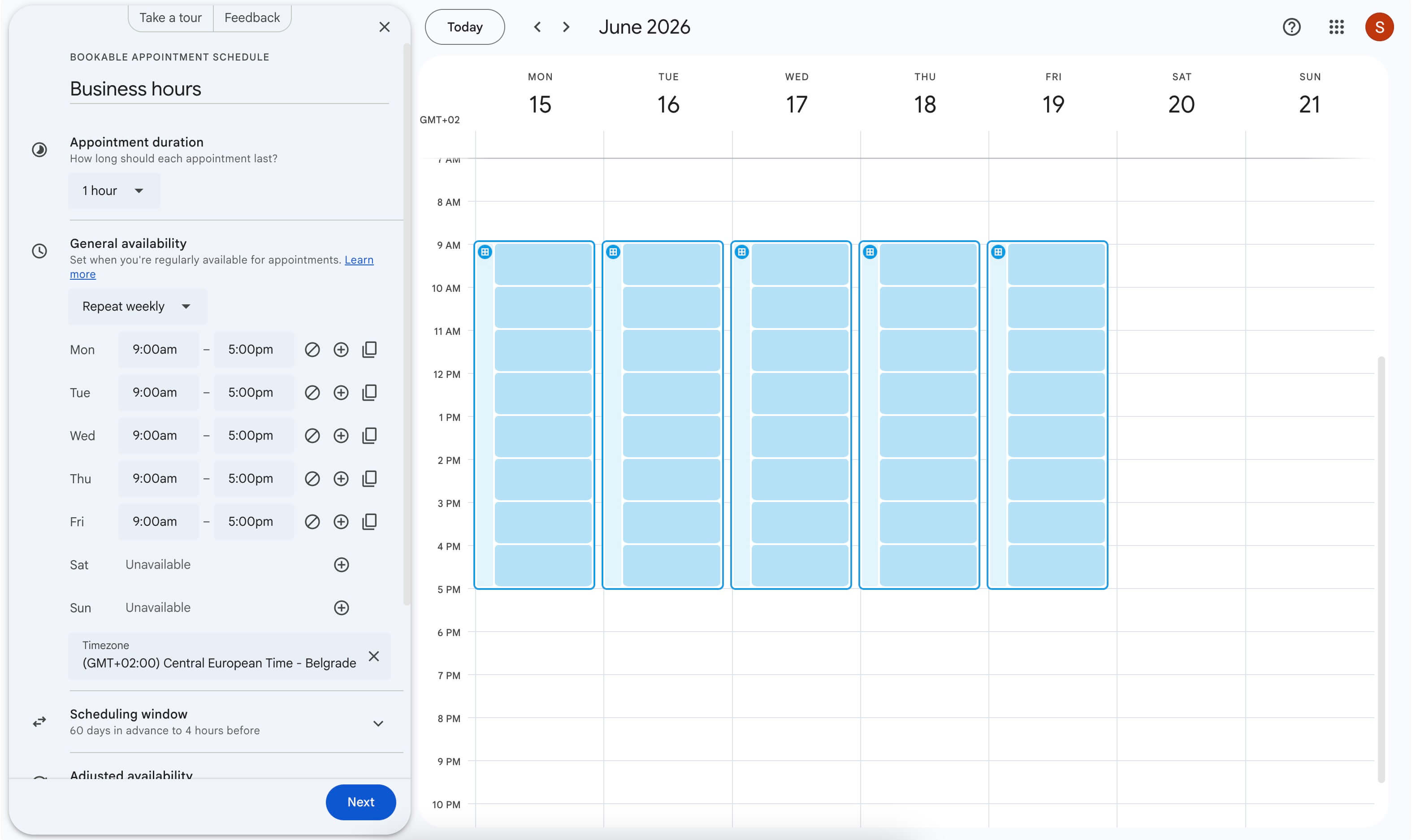
Here's how to create a basic appointment schedule in Google Calendar:
- Open Google Calendar and click Create.
- Select Appointment schedule.
- Name your schedule — this name will appear on your public booking page.
- Set your availability — choose the days and time windows when people can book.
- Choose the appointment duration — for example, 15, 30, 45, or 60 minutes.
- Set scheduling rules — such as booking window, minimum notice, buffer time, and maximum bookings per day.
- Add a location or video conferencing option — Google Meet can be added automatically.
- Customize booking form fields — collect basic information from the person booking.
- Save and share your booking page link — send it by email, add it to your website, or include it in your social profiles.
For a single person managing basic appointments, this setup is quick and reliable.
When Google Calendar Appointment Scheduling Is Enough
Google Calendar appointment scheduling is a good fit when your needs are simple.
It can work well if you:
- are a solo user,
- only need one or a few basic booking pages,
- mostly schedule free meetings,
- do not need much branding,
- already use Google Calendar every day,
- want a quick booking link without adding another tool.
For example, a freelancer offering free discovery calls, a teacher scheduling office hours, or a consultant sharing a simple availability link may not need anything more advanced.
In those cases, Google Calendar's native appointment scheduling may be enough.
Where Native Google Calendar Scheduling Falls Short
Google Calendar's appointment scheduling feature is useful, but it is still designed as a simple booking layer inside Google Calendar. It is not a full scheduling platform for businesses with more complex workflows.
Here are the areas where it can become limiting.
Limited Branding
Google Calendar booking pages are functional, but they still feel like Google Calendar pages. Customization is limited compared with a dedicated scheduling tool.
If you want your booking page to match your website, use your own domain, show your brand more clearly, or create a more polished client-facing experience, Google Calendar may feel too generic.
Basic Team Scheduling
Google Calendar works well for individual appointment scheduling, but it is not built around advanced team booking workflows.
If you need collective availability, team routing, department-level booking pages, or automatic assignment across multiple team members, a dedicated scheduling tool is usually a better fit.
Limited Routing Logic
Google Calendar can collect basic booking information, but it is not designed for advanced routing.
For example, if you want to ask visitors a few questions and then send them to the right team member, event type, or booking page based on their answers, native Google Calendar scheduling will likely be too limited. A dedicated routing forms feature is built for exactly this.
Less Control Over the Booking Experience
Google Calendar gives you the basics: availability, appointment duration, buffer time, booking windows, and calendar events.
But if scheduling is part of your sales, onboarding, support, coaching, consulting, or customer success process, you may need more control over the full experience — from booking page design to form questions, routing, automated reminders, team assignment, and follow-up flows.
Syncing Novacal with Google Calendar for Richer Scheduling
This is where connecting Novacal to Google Calendar changes the picture.
Novacal does not need to replace Google Calendar. Instead, it works with it. Your Google Calendar can remain the source of truth for your availability, while Novacal adds a more flexible scheduling layer on top.
Two-Way Google Calendar Sync
Novacal reads your Google Calendar events to understand when you are busy and writes new bookings back to your calendar automatically.
If you block time in Google Calendar for another meeting, personal appointment, travel, or deep work, Novacal can reflect that time as unavailable on your booking page.
More Flexible Availability Rules
With Novacal, you can create different scheduling rules for different types of meetings.
For example, you may want one availability window for sales calls, another for paid consultations, and another for internal meetings. You can also use rules such as buffer times, minimum notice, and booking limits in a more business-focused way.
Team and Round-Robin Booking
For teams, Novacal can help manage bookings across multiple people instead of forcing every team member to use a separate booking page.
This is useful for sales teams, support teams, agencies, consultants, and organizations where appointments should be distributed based on team availability or routing rules.
Branded Booking Pages
Novacal gives you more control over how your booking pages look and feel.
Instead of sending people to a generic calendar page, you can create a more polished experience that fits your brand, your website, and your customer journey.
Routing Forms
Novacal can also support routing forms, helping you qualify people before they book.
For example, you can ask what they need help with, what company they are from, or which service they are interested in, then route them to the right booking flow.
Google Calendar Native vs. Novacal + Google Calendar
| Feature | Google Calendar Native | Novacal + Google Calendar |
|---|---|---|
| Booking page | Yes, basic | Yes, customizable |
| Google Calendar sync | Yes | Yes |
| Appointment duration | Yes | Yes |
| Buffer time | Yes, basic | Yes, more flexible |
| Maximum bookings per day | Yes | Yes |
| Booking form fields | Basic | More flexible |
| Team scheduling | Limited | Yes |
| Routing forms | No | Yes |
| Custom branding | Limited | Yes |
| Custom domain | No / limited | Yes |
| Best for | Simple individual scheduling | Business scheduling, teams, branded booking pages, and advanced workflows |
Other Appointment Scheduling Tools That Work with Google Calendar
If Google Calendar's native appointment scheduling feels too limited, you can also use a dedicated appointment scheduling tool that syncs with your Google Calendar.
These tools usually work in a similar way: they read your Google Calendar availability, prevent double bookings, and add new appointments back to your calendar. The difference is in the booking experience, team features, payment options, integrations, and how much control you get over the scheduling workflow.
Here are some common options.
Calendly
Calendly is one of the most widely known scheduling tools. It is commonly used for sales calls, recruiting calls, customer success meetings, demos, interviews, and general business scheduling.
Calendly integrates with Google Calendar, checks your availability, and adds new bookings back to your calendar. Compared with native Google Calendar appointment scheduling, Calendly gives you more event types, stronger team scheduling options, workflow automation, reminders, integrations, and routing features.
Calendly can be a strong choice for teams that want a mature scheduling platform with broad adoption. However, depending on your needs, some features may require higher-tier plans, and the booking experience can still feel like a third-party Calendly page rather than a fully branded part of your own product or website.
Acuity Scheduling
Acuity Scheduling is a strong option for service-based businesses. It is often used by coaches, consultants, salons, wellness providers, fitness instructors, therapists, and appointment-based businesses that need more than a simple meeting link.
Acuity supports Google Calendar sync, client self-scheduling, intake forms, payments, packages, subscriptions, and service-based appointment workflows. It is especially useful when bookings are tied to specific services, client details, or paid sessions.
The tradeoff is that Acuity may feel heavier than necessary if you only need clean meeting scheduling. It is powerful, but it is more focused on service booking than lightweight scheduling for SaaS, sales, or internal business workflows.
Setmore
Setmore is an appointment scheduling platform aimed at small businesses and teams. It supports online booking pages, staff scheduling, customer appointments, reminders, and calendar sync.
It can be useful if you have multiple staff members who take bookings and need a simple way for customers to book appointments online. Setmore is often a good fit for local service businesses, clinics, beauty businesses, consultants, and small teams that want an accessible booking system.
Compared with Google Calendar's native appointment scheduling, Setmore gives you more business-oriented booking features. Compared with more advanced scheduling platforms, it may feel simpler and less focused on complex routing or SaaS-style scheduling workflows.
Square Appointments
Square Appointments is a good option if your business already uses Square for payments, point-of-sale, or customer management.
It combines appointment scheduling with payments, checkout, customer records, and business operations. This makes it a strong fit for salons, beauty businesses, wellness providers, fitness professionals, and local service businesses that need both scheduling and payment processing in one system.
However, Square Appointments may be less ideal if you mainly need a clean Google Calendar scheduling layer for sales calls, demos, consulting calls, or team-based meeting routing. Its biggest advantage is the connection between scheduling and Square's payment ecosystem.
Picktime
Picktime is another appointment scheduling tool that supports staff scheduling, online bookings, classes, resources, and calendar sync.
It can be useful for businesses that need to manage not only appointments, but also rooms, equipment, classes, or multiple staff members. For example, it may work well for education, fitness, healthcare, training, or resource-based booking scenarios.
Picktime can be more flexible than native Google Calendar appointment scheduling for multi-resource booking, but it may not be the best fit if your main priority is a highly polished branded booking page or advanced lead routing.
Novacal
Novacal is a good fit if you want appointment scheduling with Google Calendar, but need a more branded and business-ready experience than Google's native booking page.
It is especially useful when scheduling is part of your customer journey — for example, sales calls, onboarding calls, support sessions, demos, or team meetings.
With Novacal, you can keep Google Calendar as your source of truth while adding features such as customizable booking pages, team scheduling, routing forms, and more flexible scheduling workflows.
Which Google Calendar Scheduling Tool Should You Choose?
The best option depends on what kind of scheduling you need.
If you only need a simple booking page connected to your calendar, Google Calendar's native appointment scheduling may be enough.
If you need a widely adopted scheduling tool with many integrations, Calendly is a common choice.
If you run a service-based business with intake forms, packages, and client appointments, Acuity Scheduling may be a better fit.
If you need scheduling plus payment and point-of-sale features, Square Appointments is worth considering.
If you manage staff, classes, or resources, Picktime or Setmore may be useful.
If you want a cleaner business scheduling layer on top of Google Calendar — with branded booking pages, team scheduling, routing forms, and payment collection — Novacal is built for that kind of workflow.
Getting Started
Google Calendar appointment scheduling is a solid option for simple booking needs. If you only need a basic page where people can choose a time from your calendar, the native feature may be enough.
But if scheduling is an important part of your business, you may eventually need more control — better branding, team scheduling, routing forms, payment flexibility, and a smoother booking experience.
With Novacal, you can keep using Google Calendar as your source of truth while adding the scheduling features that native Google Calendar does not fully provide. a