
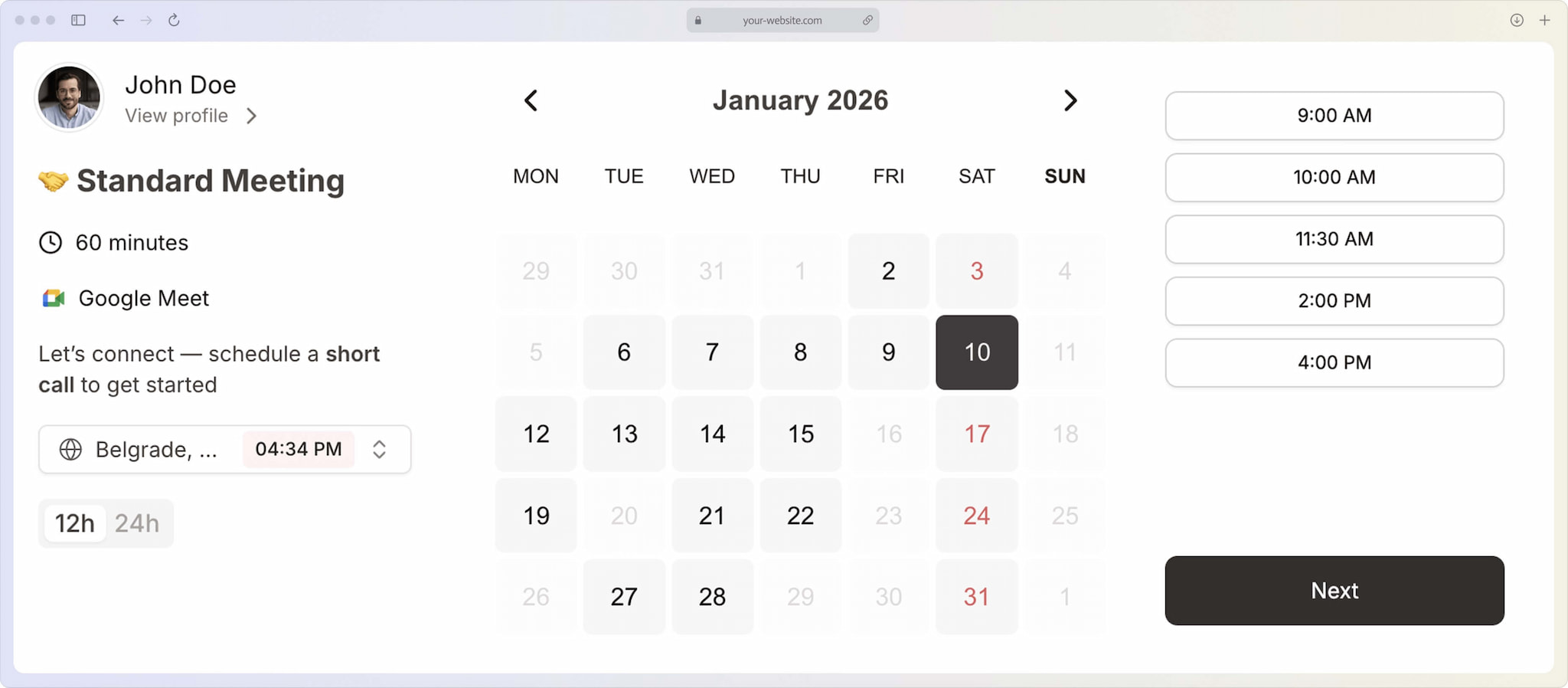
How it works
Embed a Scheduler Into Your Website in 3 Simple Steps
Follow these steps to embed a scheduler into your website and start accepting bookings in minutes.
1/3
Create your booking page
Set your availability, meeting duration, and booking rules so your scheduling page is ready for visitors to book appointments.
2/3
Get the embed code
Copy the embed code or HTML code you want to place on your site.
3/3
Embed it on your website
Paste the code into your site so clients can book directly from the page they are already viewing.
Branding
White-label your booking page
Add your logo and brand colors to your booking page. Remove all third-party branding and make it look like it's part of your website.
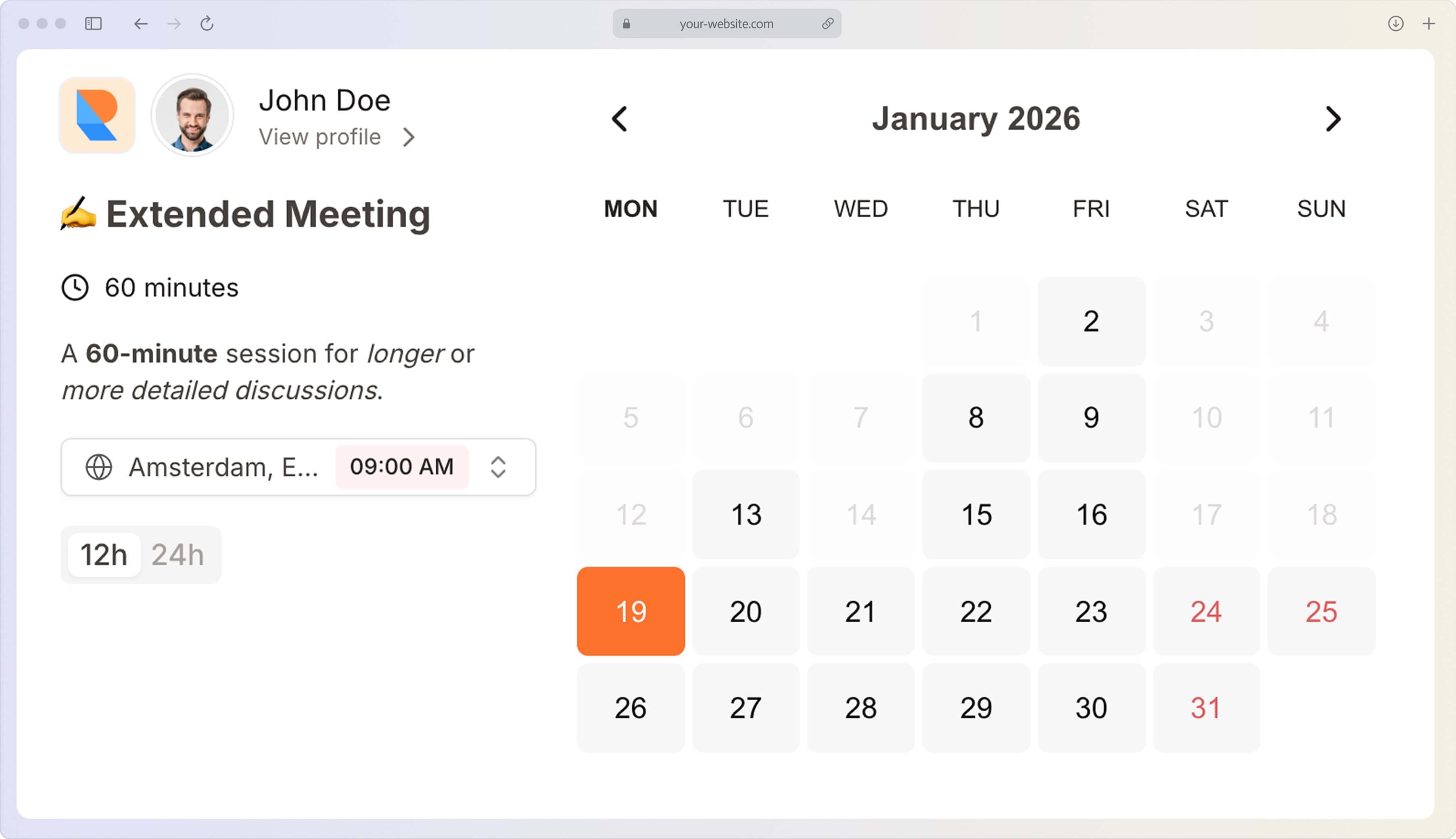
- Add logo and brand colors
- Remove third-party branding to match your site
- Changes update automatically across all embeds
FAQ
Frequently Asked Questions
Get answers to common questions about using Novacal's scheduling platform
Copy the embed code from your dashboard, paste it into your website's HTML where you want the calendar to appear. This is the fastest way to embed a scheduler into your website. It works on WordPress, Webflow, Squarespace, and custom sites in less than 2 minutes, so clients can book appointments directly from your scheduling page.