
Managing multiple calendars across different platforms can feel like juggling—one wrong move and you end up with scheduling conflicts, frustrated clients, and wasted time. If you're using Google Calendar for work, Outlook for team meetings, and Apple Calendar for personal appointments, you know the struggle of keeping everything synchronized.
The good news? Modern scheduling tools like Novacal make it simple to connect all your calendars in one place, automatically preventing double bookings before they happen.
What is Multi-Calendar Sync?
Multi-calendar synchronization allows scheduling software to check availability across all your connected calendars simultaneously. When someone tries to book time with you, the system scans every calendar you've linked and only shows time slots that are free everywhere.
This creates a single source of truth for your availability without forcing you to abandon the calendar platforms you already use.
Step-by-Step: Connecting Your Calendars
- Sign In to Your Novacal Account - Log in to your existing Novacal account or create a new one if you haven't already.
- Navigate to Integrations - From your Novacal dashboard, go to the Integrations section.
- Choose Your Calendar Provider - Select the calendar integration you want to connect—Google Calendar, Outlook Calendar, Apple Calendar, or Zoho Calendar.
- Click Connect - Click the "Connect" button for your chosen calendar provider.
- Authenticate - You'll be redirected to sign in and grant Novacal permission to access your calendar. This allows Novacal to check your availability and add new bookings.
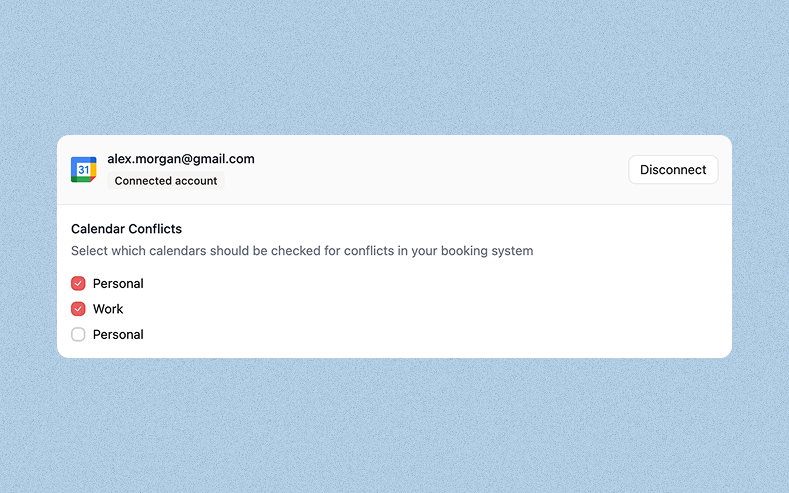
- Select Calendars to Check for Conflicts - After authenticating, you'll be returned to Novacal where you can choose which specific calendars should be monitored for conflicts. This is useful if you have multiple calendars within the same account but only want certain ones checked for availability.
- Add More Calendars - Repeat steps 3-6 to connect additional calendar providers or accounts. You can link multiple Google accounts, Outlook calendars, and mix different providers as needed.
Troubleshooting Common Issues
Calendar not syncing - Verify you've granted the necessary permissions during authentication. You may need to reconnect the calendar.
Events not blocking time - Check that the calendar’s conflict detection setting is enabled.
Time zone mismatches - Confirm the issue isn’t related to time zone differences.
Take Control of Your Schedule
Double bookings are more than just inconvenient—they're a sign that your scheduling system isn't working for you. By connecting all your calendars to a unified scheduling platform like Novacal, you eliminate conflicts, save time, and present a more professional image to clients and colleagues.
The setup takes just a few minutes, but the time and stress you'll save over the coming months makes it one of the most valuable integrations you can implement.