
If you've ever had to manually send a confirmation email, chase down a no-show, or follow up after a meeting — you already know how much time the around the meeting takes. The meeting itself might be 30 minutes. But the emails, reminders, and follow-ups? That can easily double the time.
Scheduling workflows solve this. They let you automate every touchpoint in your booking process — before, during, and after a meeting — so nothing falls through the cracks and nothing eats your time.
In this guide, we'll break down exactly what scheduling workflows are, how they work, and how you can use them to run a more efficient booking process.
What Is a Scheduling Workflow?
A scheduling workflow is a set of automated actions that trigger based on booking events. Think of it as a ruleset: when something happens, automatically do something else.
For example:
- When someone books a meeting → send a confirmation email with prep instructions
- When a meeting is 24 hours away → send a reminder to both parties
- When a meeting ends → send a follow-up email with next steps
Instead of you manually tracking all of this, the workflow handles it automatically, every time, for every booking.
Why Workflows Matter for Your Booking Process
Most scheduling tools stop at the booking itself. Someone picks a slot, they get a calendar invite, and that's it. But the booking is just one moment in a longer process.
Here's what typically gets dropped without automation:
- Reminder emails get forgotten or sent too late
- Clients show up unprepared because there were no pre-meeting instructions
- Follow-ups are inconsistent — some meetings get them, some don't
- No-shows happen because people forgot and nobody reminded them
Workflows close these gaps. They make your entire booking process consistent and professional, without adding anything to your to-do list.
The Anatomy of a Scheduling Workflow
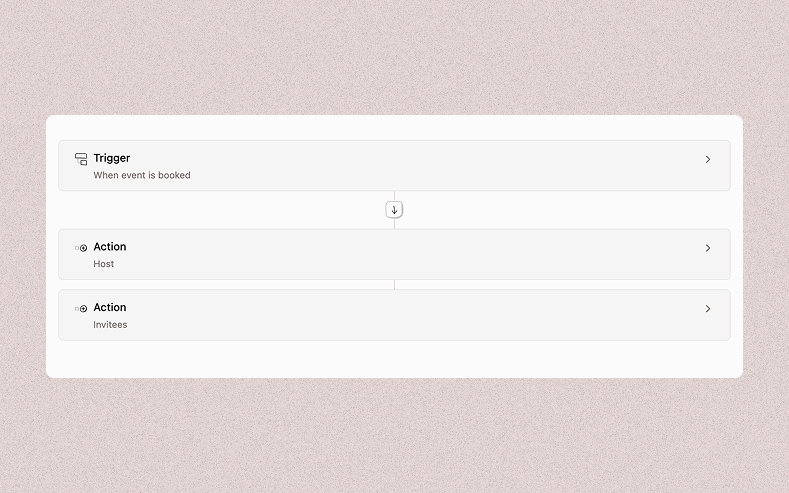
Every workflow has two core components:
1. Trigger
The event that starts the workflow. Common triggers include:
- Booking created — someone just scheduled a meeting
- Meeting is approaching — X hours or days before the meeting starts
- Meeting ended — the scheduled time has passed
2. Action
What happens when the trigger fires. In Novacal, the action is sending an email notification — to your guest, to yourself, or to both. You define the subject and body, and the system handles the sending automatically at exactly the right moment.
Common Workflow Use Cases
Confirmation Emails— The moment someone books, send them a confirmation with all the details they need: the meeting link, what to prepare, any documents to review beforehand. This sets expectations immediately and reduces back-and-forth.
Reminders Before the Meeting— Send an automated reminder 24 hours before, and another one an hour before. Reminders are the single most effective way to reduce no-shows. Most no-shows aren't intentional — people just forget.
Pre-Meeting Prep Emails—If your meetings are more complex — a sales call, a coaching session, a client onboarding — you can send a pre-meeting email a day or two in advance. Ask them to fill out a form, review a document, or come with specific answers ready. You'll get better use out of every meeting.
Post-Meeting Follow-Ups—After the meeting ends, automatically send a follow-up. This could include a summary, a link to book the next session, a feedback form, or a proposal. Automating this means every client gets the same professional experience regardless of how busy you are.
No-Show Recovery—If someone misses a meeting, you can trigger a follow-up that gives them an easy way to reschedule. This is often overlooked but incredibly valuable — many no-shows will rebook if you make it frictionless.
Who Benefits Most from Scheduling Workflows?
Workflows add value across a wide range of use cases, but they're especially impactful for:
Freelancers and consultants — You're handling every client touchpoint yourself. Automating reminders and follow-ups means you don't have to context-switch into "admin mode" after every call.
Coaches — Session prep emails and post-session summaries create a more structured, professional experience for clients, which improves retention.
Sales teams — Consistent pre-call and post-call sequences ensure nothing gets dropped between reps. Everyone follows the same playbook automatically.
Agencies — Client onboarding calls can trigger a whole welcome sequence without anyone on your team lifting a finger.
Anyone running back-to-back meetings — When your calendar is packed, there's no time to manually email between sessions. Workflows do it while you're still in the previous call.
How to Set Up Scheduling Workflows in Novacal
Novacal has built-in workflows directly tied to your booking pages. Here's how to get started:
1. Log in to your Novacal account
Head to novacal.io and sign in to your account.
2. Navigate to Workflows
From your dashboard, go to the Workflows section in the main navigation.
3. Create a new workflow
Click the button to create a new workflow. You'll be redirected to the workflow configuration page.
4. Configure your workflow
On the workflow page, set up three things:
Event types — select which booking pages this workflow applies to.
Trigger — choose when the workflow runs. Available triggers are:
- When event is booked — fires immediately when a booking is created
- Before event starts — fires X minutes, hours, or days before the meeting
- After event ends — fires X minutes, hours, or days after the meeting
- When event is updated — fires when a booking is rescheduled or modified
- When event is cancelled — fires when a booking is cancelled
Actions — add one or more email actions. For each action, choose the recipient (host, invitees, or both), set the subject, and write the email content. You can also enable calendar invitations and include cancel/reschedule links where applicable.
5. Personalize with variables
Use dynamic variables in the subject and body to make every email feel personal — things like the recipient's name, event date, start time, location, and more. The full list is available inside the workflow editor.
6. Save and activate
Save the workflow and make sure it's set to active. From that point on, it runs automatically for every booking that matches your configured event types.
Tips for Getting the Most Out of Workflows
Keep emails short and purposeful. Automated emails are not newsletters. Each one should have a single job — remind, prepare, or follow up. The shorter they are, the more likely they get read.
Personalize with variables. A reminder that says "Hi Sarah, just a heads up — your call with Alex is tomorrow at 2pm" is far more effective than a generic "Reminder: you have a meeting."
Don't over-automate. Three to four touchpoints is usually enough: confirmation, reminder, and follow-up. Adding more starts to feel like spam and trains people to ignore your emails.
Match the tone to your brand. If you run a casual freelance business, your automated emails should sound like you. If you're an agency, they should sound polished. The templates are fully customizable — use that.
Review your workflows periodically. As your process evolves, your workflows should too. Set a reminder to revisit them every few months and update the copy or timing as needed.
Conclusion
A good scheduling tool books meetings. A great one makes everything around the meeting run smoothly too.
Scheduling workflows let you build a consistent, professional experience for every person who books time with you — without adding any manual work. From the moment someone books to the follow-up after the call, the right message goes out at the right time, automatically.
If you're not using workflows yet, the setup takes less than ten minutes — and the time you get back compounds with every booking you receive.
Ready to try it? Set up your first workflow in Novacal and see how much of your booking process you can run on autopilot.